

Sometimes managing full catalog data on Amazon is more trouble than it's worth: the listing attributes are complex, or the product already exists on Amazon and you only want to sell against its ASIN.
Turning on Offer only (previously called "Send Only ASIN") makes SureDone send Amazon only your offer (price, inventory, shipping template and condition) instead of the full catalog listing.
This guide explains how Offer only works.
Enabling and using Offer only
To turn on Offer only, go to Channels > Amazon > Settings and scroll to the Offer only setting.
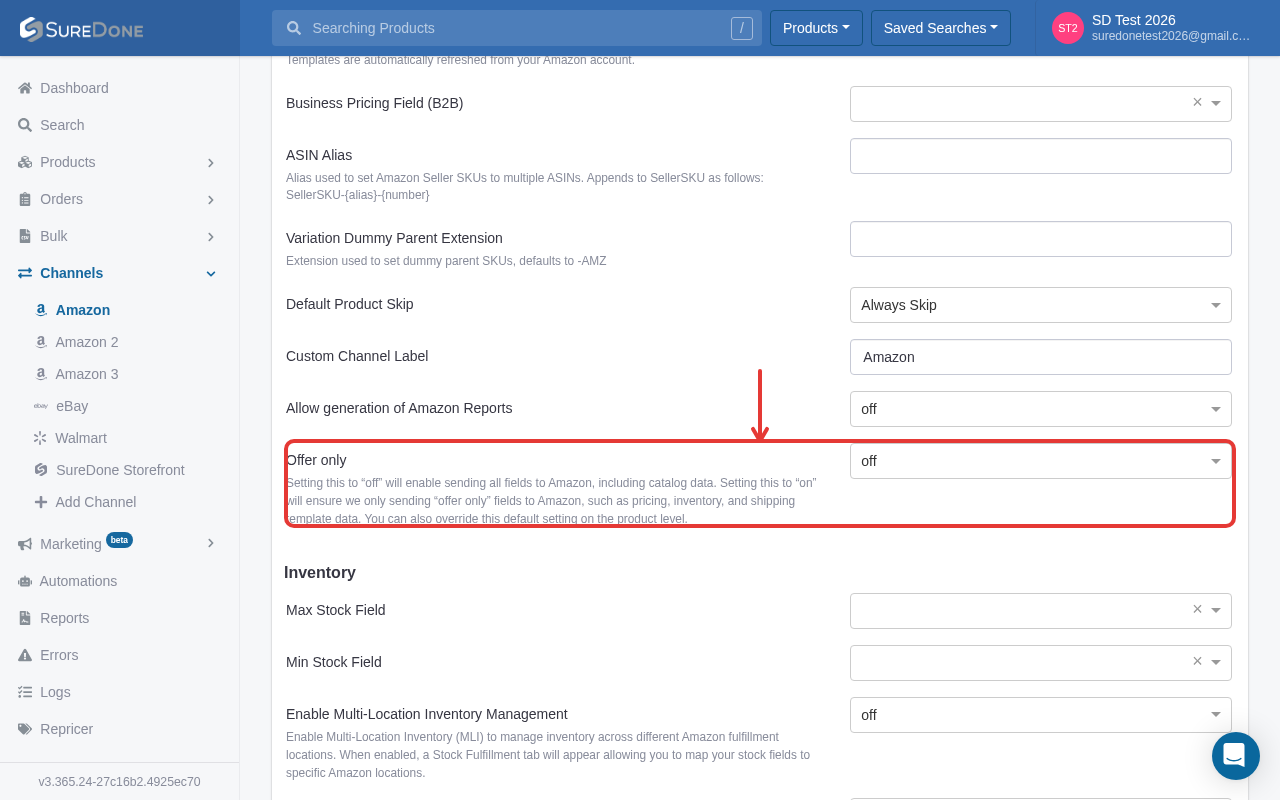
With this set to "on", SureDone sends Amazon only offer fields, such as pricing, inventory and shipping template data. With it set to "off", SureDone sends all fields, including catalog data.
To override the account setting for one product, open the product, go to its Amazon section and set Offer Only to "on" or "off". "default" uses the account setting. In bulk uploads, use the amznofferonly column (for a second Amazon account, amzn2offeronly) with the values on, off or default.
Note: older accounts that had Send Only ASIN turned on keep that choice. It appears under Offer only.
What changes with Offer only
With Offer only on, SureDone sends an offer-only listing, which adds your offer to the existing Amazon product page without changing its catalog details. Because of this, you don't need to choose an Amazon product type for these products.
Only the following data is sent:
- ASIN
- Price
- Quantity and handling time
- Shipping template
- Condition
- For FBA products only: the dangerous goods (hazmat) and batteries declarations
If you list a new product with no ASIN, SureDone also sends its brand and product identifier (UPC/EAN) so Amazon can match it to an existing product page.
Images, titles, descriptions, bullet points and other catalog attributes are never sent while Offer only is on. Variation (parent/child) relationships aren't sent either, so each variation is listed as its own offer on its own ASIN.
