

Amazon Settings
The second step to managing Amazon through SureDone is setup the rules by which SureDone will manage your Amazon listings. These settings allow you to select default settings to apply to your listings. With default settings in place, you can list more efficiently to Amazon by only populating the required fields that change from listing to listing and letting SureDone default the other information.
All of these defaults can be overridden if you provide a different value on the individual product listing, giving you maximum listing flexibility. To reach your Amazon channel settings, use the same procedure you followed to authorize your channel:
- Login to your SureDone account.
- Click on Channels in the left-hand navigation menu.
- Click on Amazon in the Channels list. This opens a dedicated Amazon page with tabs: Instructions, Authorization, Settings, Import, Manage Fields, and Reports.
- Use the 'Channel enabled' toggle at the top of the page (replaces the old inline 'Status' toggle) to turn Amazon syncing on or off.
- Use the Authorization tab to view or re-run the authorization wizard (Step 1: Permissions, Step 2: Complete).
- Use the Settings tab to manage Account Defaults and Features, now grouped under General, Inventory, Orders, and FBA headings (see below).
- Use the Manage Fields tab to manage Field Mapping (replaces the old inline Field Mapping section at the bottom of the page).
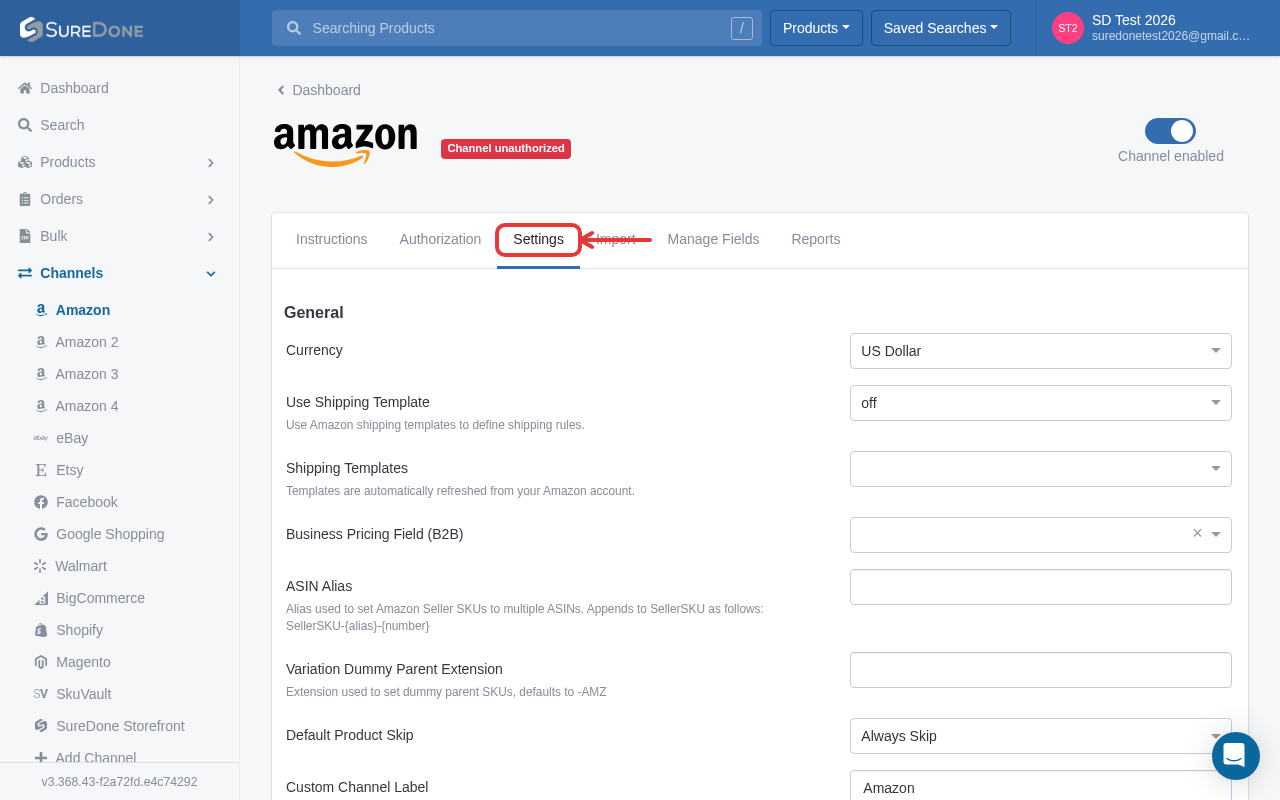
On the Settings tab, these are now grouped as follows:
- General: Currency, Use Shipping Template, Shipping Templates, Business Pricing Field (B2B), ASIN Alias, Variation Dummy Parent Extension, Default Product Skip, Custom Channel Label, Allow generation of Amazon Reports, Offer only.
- Inventory: Max Stock Field, Min Stock Field, Enable Multi-Location Inventory Management, Restock Inventory Upon Order Cancellation.
- Orders: Auto MCF Search Rule, Auto MCF Fulfillment Policy, Allow Fulfillment Latency of 0 Days, Import Pending Orders.
- FBA: FBA Inventory Import, FBA Status Import, FBA Orders Import (note: the toggle is labeled 'FBA Orders Import', plural, not 'FBA Order Import').
- Max Stock Field: Select the field to be used to hold your Max Stock Quantity.
- This advanced feature is explained in a separate article.
- This can be mapped to the same field used for eBay.
- An example of how this works is shown in an eBay example explained here
- Min Stock Field: Select the field to be used to hold your Min Stock Quantity.
- This advanced feature is explained in a separate article.
- This can be mapped to the same field used for eBay.
- An example of how this works is shown in an eBay example explained here
