

Amazon shipping templates are named sets of shipping rules, such as regions, speeds and fees, similar to eBay shipping profiles. You create the templates in Amazon, then tell SureDone which template each product uses.
1. Create your templates in Amazon
Templates are created and edited in Amazon Seller Central, under Shipping Settings. Amazon gives every account a default template. You can change it there or add more.
2. Turn on shipping templates in SureDone
- Go to Channels > Amazon > Settings. If you have more than one Amazon account, choose the one you want.
- Set Use Shipping Template to "on".
The Shipping Templates list below it shows the templates in your Amazon account, refreshed automatically. Use it to check the exact template names.
3. Create a field for the template name
Go to Settings > Custom Fields and create a product field to hold each product's template name, for example amznshippingtemplate. If you pick a field type with a length limit, make sure your longest template name fits.
4. Map the field to Amazon
- Go to Channels > Amazon > Manage Fields.
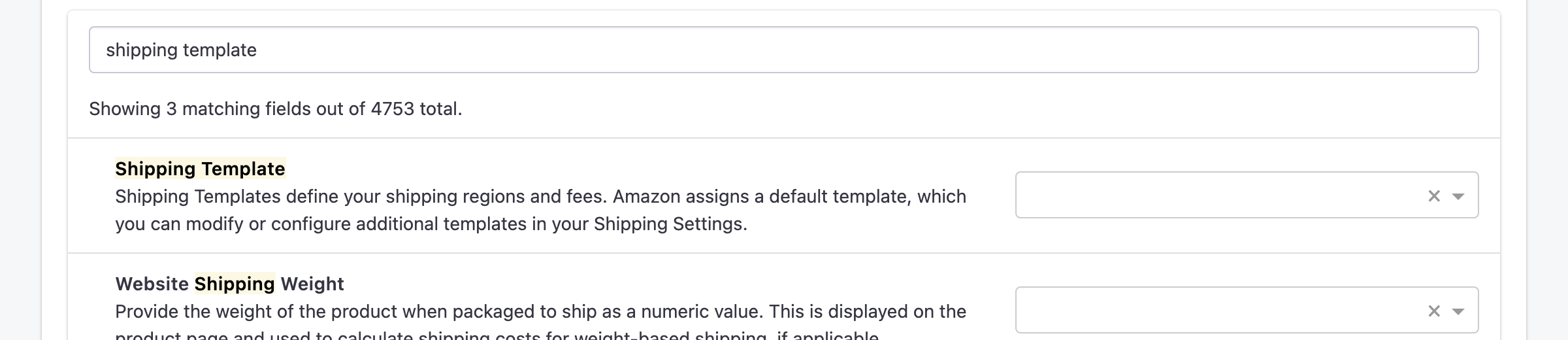
- Type "shipping template" in Search fields.
- In the Shipping Template row, select the field you created.
Click Save changes.
5. Set the template on your products
Enter the template name in your new field, exactly as it appears in the Shipping Templates list, including capital letters.
- One product: open it in the product editor, fill in the field, and click Update. Make sure the product isn't set to skip Amazon.
- Many products: in a bulk upload, use the field's name as a column header, for example amznshippingtemplate, with the template name in each row. Don't tick Skip Amazon on the upload page.
After the update reaches Amazon, the product uses that template. To check the result, open Logs and filter by the amazon channel.
