

This guide will show you how to create a custom export on your inventory. The spreadsheet you download from the export can then be modified and uploaded back to edit your inventory quickly; we'll cover that more in the next guide on Editing Existing Products in Bulk.
To export the file:
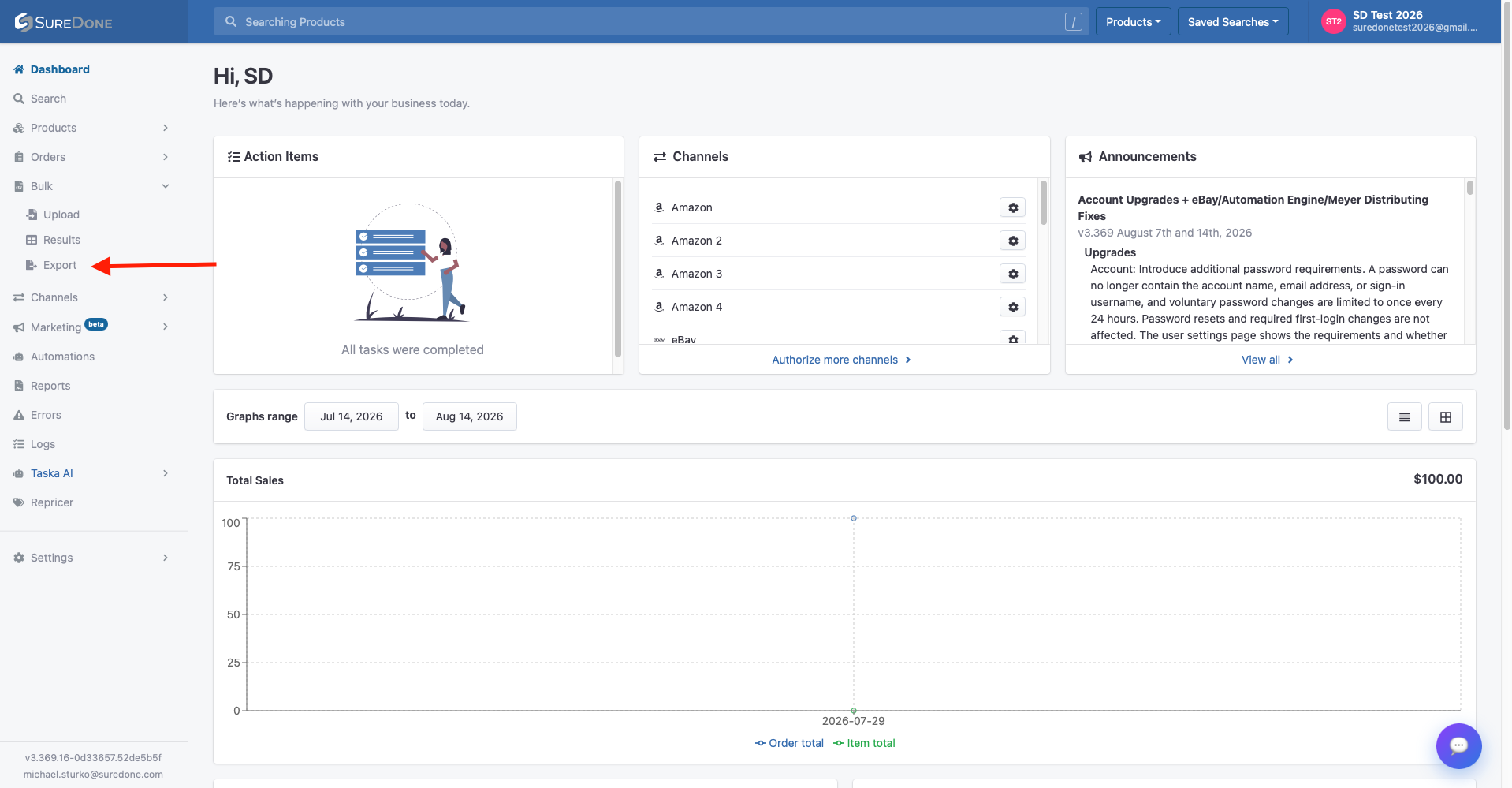
1. In the sidebar on your dashboard under Bulk, click Export to reach the bulk export page at https://app.suredone.com/#!/bulk/exports
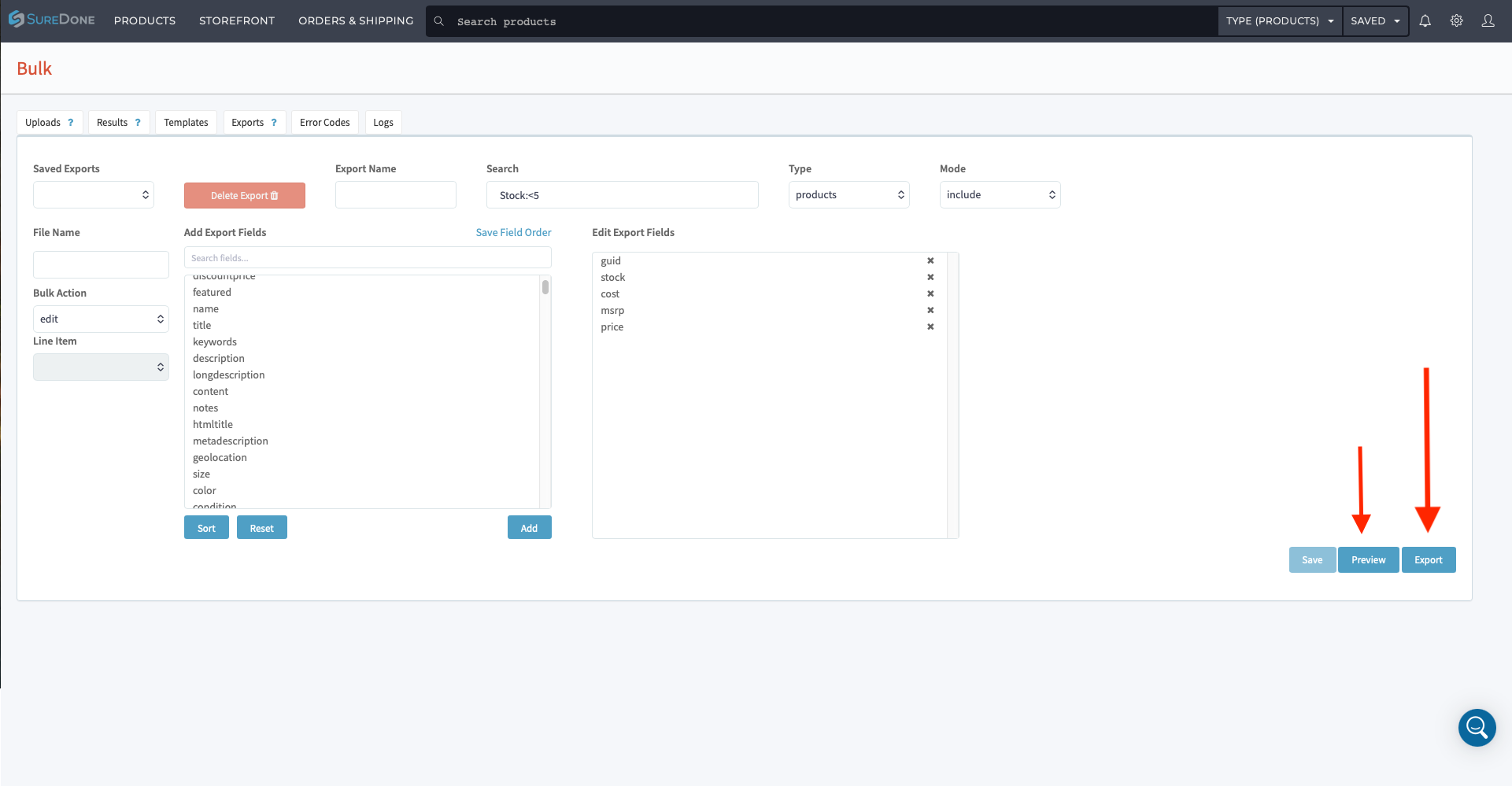
2. Type in a Search query for the products you would like to export. These are the same search queries used for normal inventory searches.
Examples: Stock:<5, Brand=Samsung, or title:new price:<100, etc.
You can also set the Type (products or orders) and Mode (include or remove) dropdowns.
3. To select fields for your export, click on a field name in the Add Export Fields list on the left, then click the Add button to move it to the Edit Export Fields panel on the right. You can search for fields using the search box above the list.
Tip: Make sure you include the guid field in your export so that your file will have an identifier to upload the products back.
4. Optionally enter an Export Name and File Name. You can save the export configuration using the Save button for later reuse via the Saved Exports dropdown.
5. Click Preview to see matching items before exporting, or click Export to generate the export file immediately. Both buttons are located at the bottom-right of the page.
6. Export results can be found in the Results tab on the Bulk page. Larger exports may take a few minutes. SureDone will automatically email you when the export is complete.

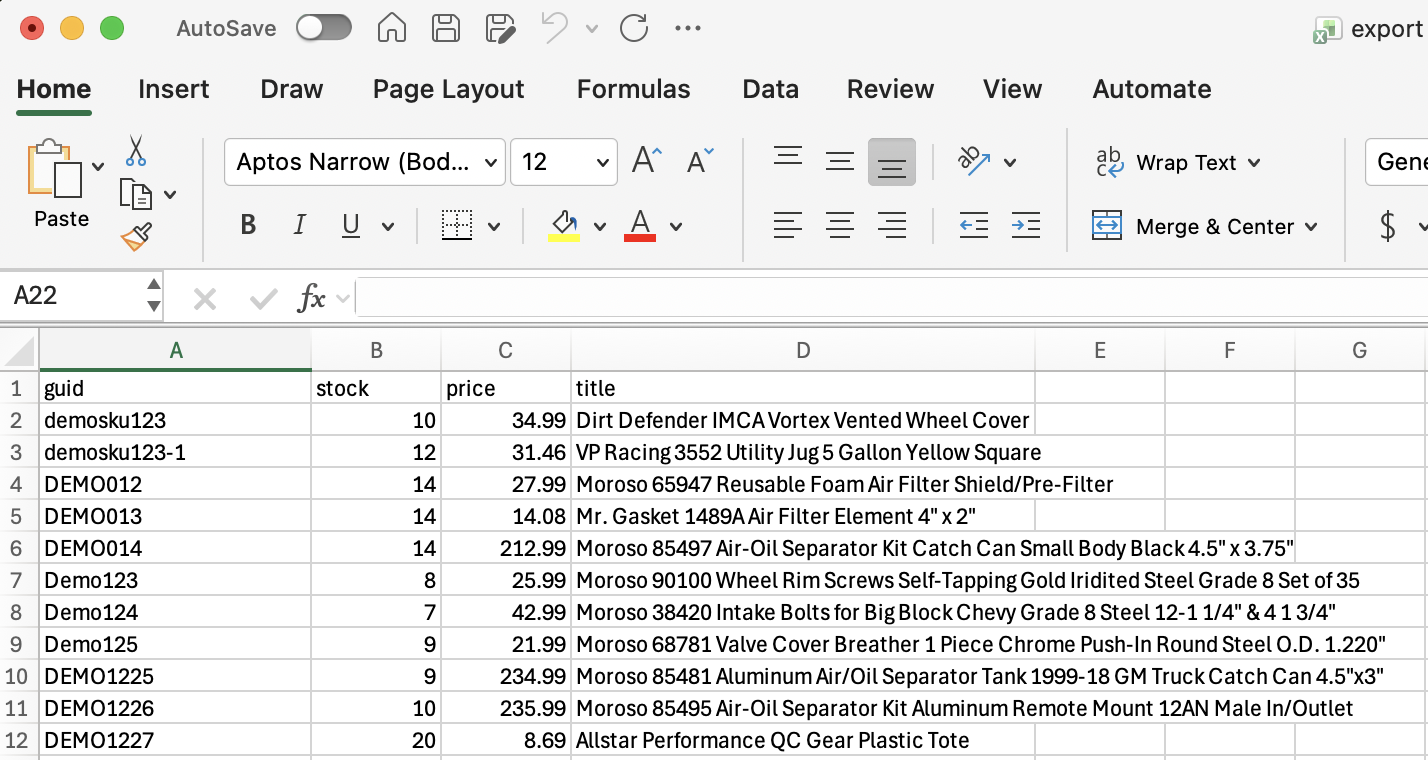
7. You can open the file in most spreadsheet applications, and it will include all the information you requested for the items that match your query!
Important Notes
Tip: If you aren't sure you got the search query right and want to preview the results, click the Preview button at the bottom-right of the Exports form. You can review the matching items and then export from there.

Tip: If your export file has a lot of messy HTML in it, or if the information seems to be shifted, try a custom export without the description fields — sometimes the commas and HTML tags can break a .csv file.

Tip: You can also do a "quick export" after a search query in the Inventory View by pressing Export at the top of the page. This will export all of the headers for this search. It's quick but not quite as customizable.

For a refresher on reading this file, please return to the Guide on the Bulk File Format.
For the next lesson, read the guide on how to Edit Your Products in Bulk.
This guide is a part of the Introduction to Bulk Series - for maximum learning, please read all the guides in the series! To view the whole series, go here!